Create music as an iPhone ringtone with iDevice Manager


With iDevice Manager, you can turn your favorite songs into a personalized iPhone ringtone in no time at all—without iTunes or complicated settings. Simply select a music file, edit it, and transfer it directly to your iPhone.

Create Tones Edit Tone Try now for free
For Windows 11
and Windows 10
For iPhone 17, 16, 15, 14 and Max, iPad Pro
and iPhone 13, 12, 11, XR, iPhone X, SE, iPad

Step-by-step instructions: Music as iPhone sound

  1. Install iDevice Manager on your Windows PC.
  2. Open the program and select "Ringtones" from the navigation bar.
  3. Drag and drop an MP3, M4A, or M4R file into the list.
  4. Adjust the start and end times to define the desired section.
  5. Click "Apply" to convert the music to an iPhone sound and automatically transfer it to your device.
  6. If the sound does not appear on the iPhone: Close the "Settings" app or restart the device.
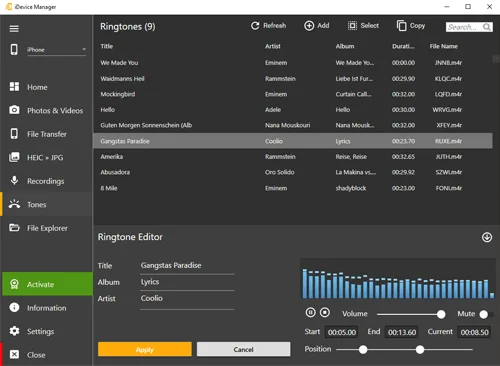
Create iPhone tone from music with Device Manager

Edit & manage ringtones

Transferring ringtones between iPhones

If you have a new iPhone, you can easily transfer your custom ringtones:

  1. Connect your old iPhone to your PC → Go to "Ringtones" → Select all → "Copy."
  2. Disconnect the old device, connect the new iPhone, and drag the saved tones back into the list.
  3. Your iPhone ringtones are ready to use immediately.

Why use iDevice Manager to set music as iPhone ringtones?

With iDevice Manager, you retain full control over your music files. Create your own ringtones without iTunes and without restrictions—free of charge, intuitively, and fully compatible with Windows 10 & 11 as well as all current iPhone models.

Mini FAQ: Music as iPhone ringtone

🎵 What do I need to create music as an iPhone ringtone?

Just iDevice Manager, a music file (MP3, M4A, M4R) and a connected iPhone.

🎶 Can I adjust the length of the ringtone?

Yes, you can set the start and end times in iDevice Manager as you wish.

📱 Does it work without iTunes?

Yes, the software works completely independently of iTunes.

💾 Can I create multiple tones at the same time?

Yes, multiple files can be converted in one step using drag & drop.

🔔 What should I do if the ringtone is not displayed?

Restart your iPhone or the "Settings" app – the tone will then appear in "Sounds & Haptics."

💡 Is the service free?

The basic version is free. The Pro version offers additional convenience features.

Compatibility: Supported iOS and Windows versions

iDevice Manager supports: The connection is made via USB cable or optionally via Wi-Fi if the device is unlocked.

Conclusion

With iDevice Manager, creating music as iPhone ringtones is a breeze. No iTunes, no hassle—simple, fast, and personalized. Download it now for free and design your own ringtones!
Dialog