Do you want to find files on your iPhone or iPad from your PC and, if needed, download or copy them? With the iDevice Manager, you can easily view many of the folders and files shared by Apple on your Windows PC. The layout is very familiar: on the left, the folders in a tree structure, on the right, the files in a detailed list – similar to Windows Explorer.
✓ Quickly find your way around • 📁 Easily browse folders • ⬇ Copy files to your PC
Find files Try now for freeAccess to the file system of Apple devices is generally restricted. Nevertheless, with the iDevice Manager, you can access many shared files and folders and browse them directly on your PC. This is especially handy if you want to find content faster, back it up, or transfer it to your computer.
Important Note:
Only folders and files approved by Apple are visible. Files belonging to the iPhone or iPad operating system, as well as the contents of certain apps, will not be displayed if Apple does not grant access to them.
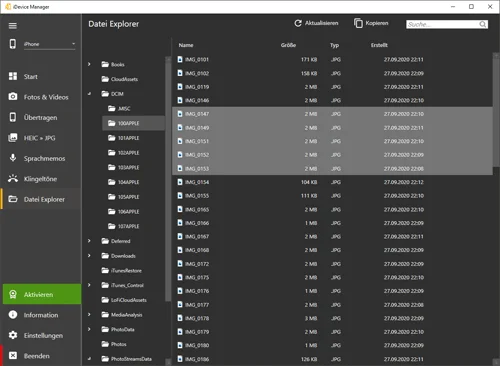
Advantage: The familiar Explorer view makes it easy to find your way around. Especially when dealing with many folders and files, navigation is much more convenient than on the device itself.
The module is designed so that Windows users can find their way around immediately: Folders on the left, file list on the right. This is exactly how the existing page is laid out, including navigation through subfolders via the tree structure.
This saves time because you don’t have to search for each file individually. Instead, you click your way step by step through the visible folders and see right away which files they contain. This allows you to review specific content and then copy it to your PC.
Once you've found the files you want, you can easily copy them to your computer using iDevice Manager. According to the website, this is possible for both entire folders as well as single or multiple files.
⬇ Handy: This is how you can back up, process, or archive shared iPhone and iPad files locally.
This is not recommended. The existing page explicitly states that deleting files or folders can damage the device, and the iDevice Manager therefore does not offer a delete function for this purpose.
⚠️ Important: Therefore, use the module to find, view and copy files—not to remove system-critical content.
No. Only the folders and files that Apple has made accessible are visible.
Yes, the page describes access for both iPhone and iPad.
The folders appear on the left as a tree structure, and the files on the right as a detailed list—similar to Windows Explorer.
Yes. Shared files and folders can be copied to the PC and saved there.
No. According to the existing page, the iDevice Manager deliberately does not offer this feature to prevent damage to the device.
The existing page explicitly explains how to access files via the iDevice Manager in the “File Explorer” section.
If you want to quickly find shared files on your iPhone or iPad and copy them securely to your PC, the iDevice Manager is a user-friendly solution with a familiar Explorer view.